
SwitchCast for Windows · v1.5.0

SHARE ONCE.
SWITCH SEAMLESSLY.

Switch between apps, slides, cameras, and media without changing the window your audience sees.

Easy Windows Setup · Local-First · No Remote Tracking

Engineered for Presentations
That Don't Stop

Everything you need to present multiple applications, slide decks, media, and cameras from a single shared window.

01ONE SHARED WINDOW

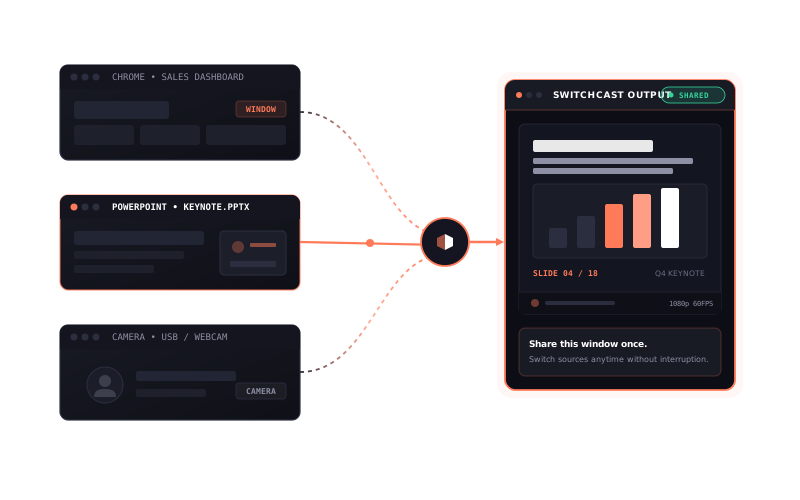
Share once. Present anything.

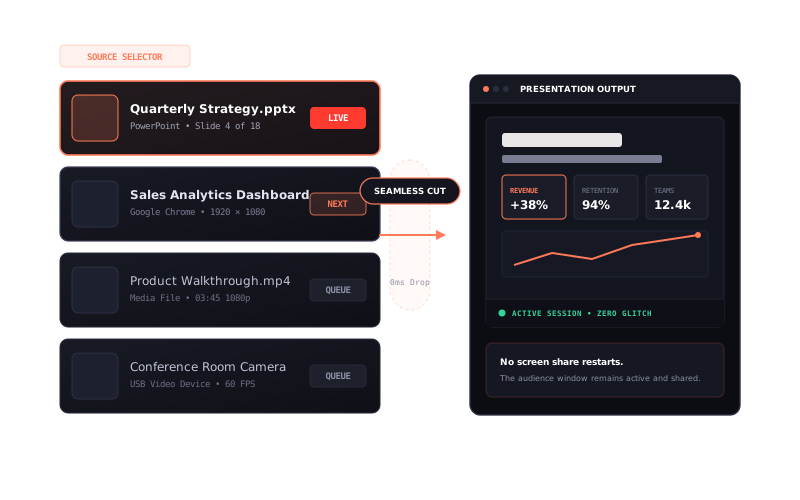
Keep one window shared while moving between everything you've prepared. Your audience never sees you stop and restart screen share.

Multiple application windows routing into a single presentation output
02EXTERNAL DISPLAYS

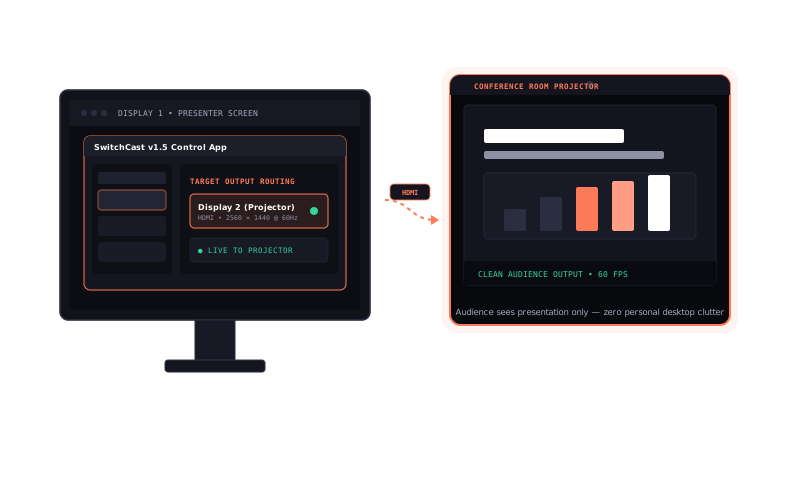
Present beyond your desktop.

Use a second screen or projector while keeping your controls on your own display.

Conceptual routing diagram sending clean presentation output to external screen
03PRESENTER DOCK

Stay in control.

Switch sources, pause, and blackout without returning to the main window.

SwitchCast Floating Presenter Dock with source switching, pause, and blackout controls
04SOURCE SWITCHING

Everything ready. One smooth flow.

Prepare windows, presentations, images, and videos before you go live. Cut between sources with zero latency.

Source switching sequence transitioning smoothly to presentation output
05POWERPOINT & MEDIA

More than screen sharing.

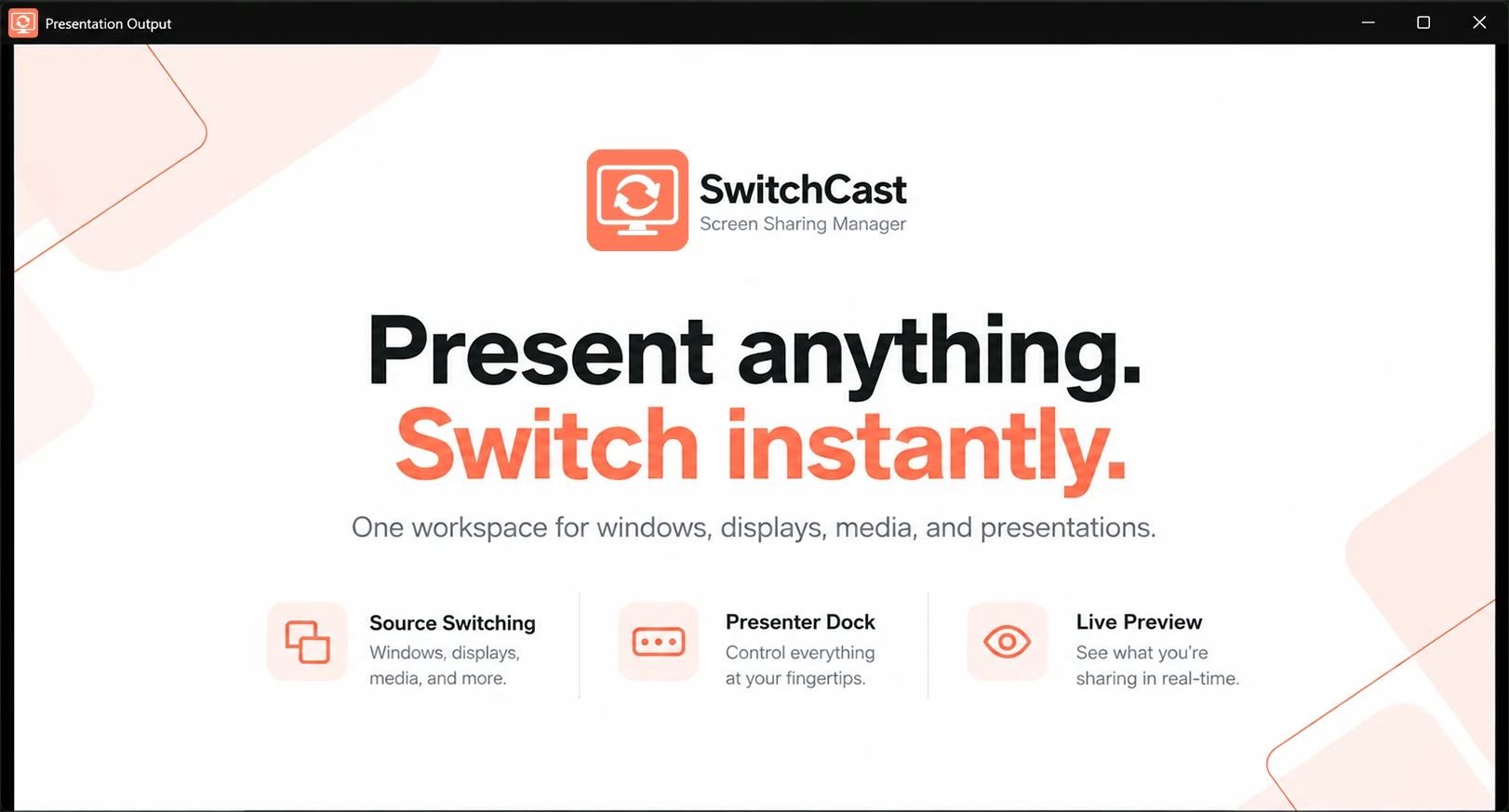
Present slide decks, videos, and images through one consistent output.

Presentation Output window rendering presentation slides cleanly
06BACKGROUND MUSIC

Set the mood. Keep it playing.

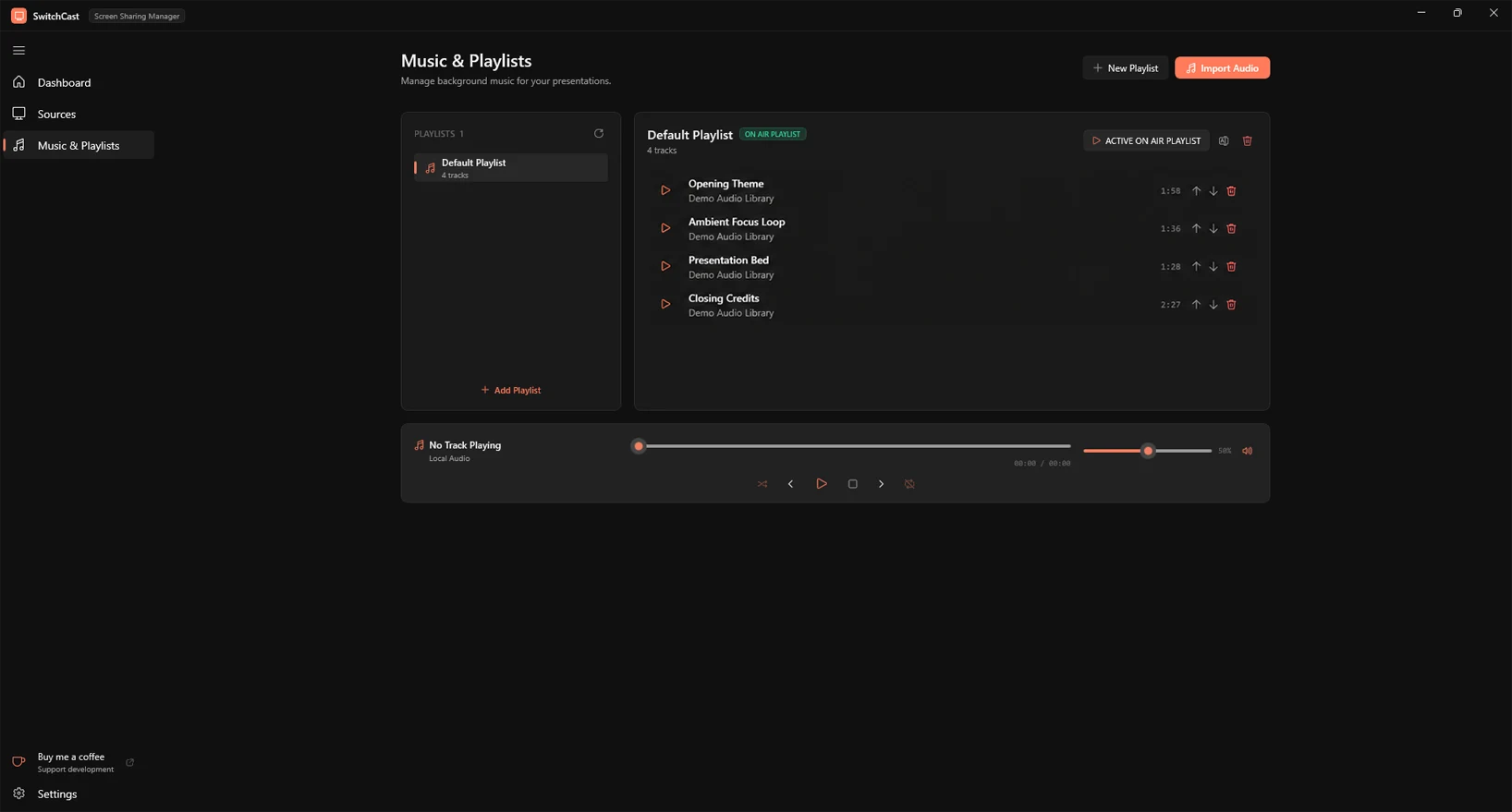
Manage presentation music independently from your visual sources.

SwitchCast Music and Playlists tab with audio queue and volume slider
GETTING STARTED

A Visual Product Storyboard

Follow the six sequential phases of a seamless SwitchCast presentation. From preparing sources to live switching and background audio.

01/PREPARE

Prepare your presentation.

Select running applications, PowerPoint decks, and media files to build your presentation lineup before going live.

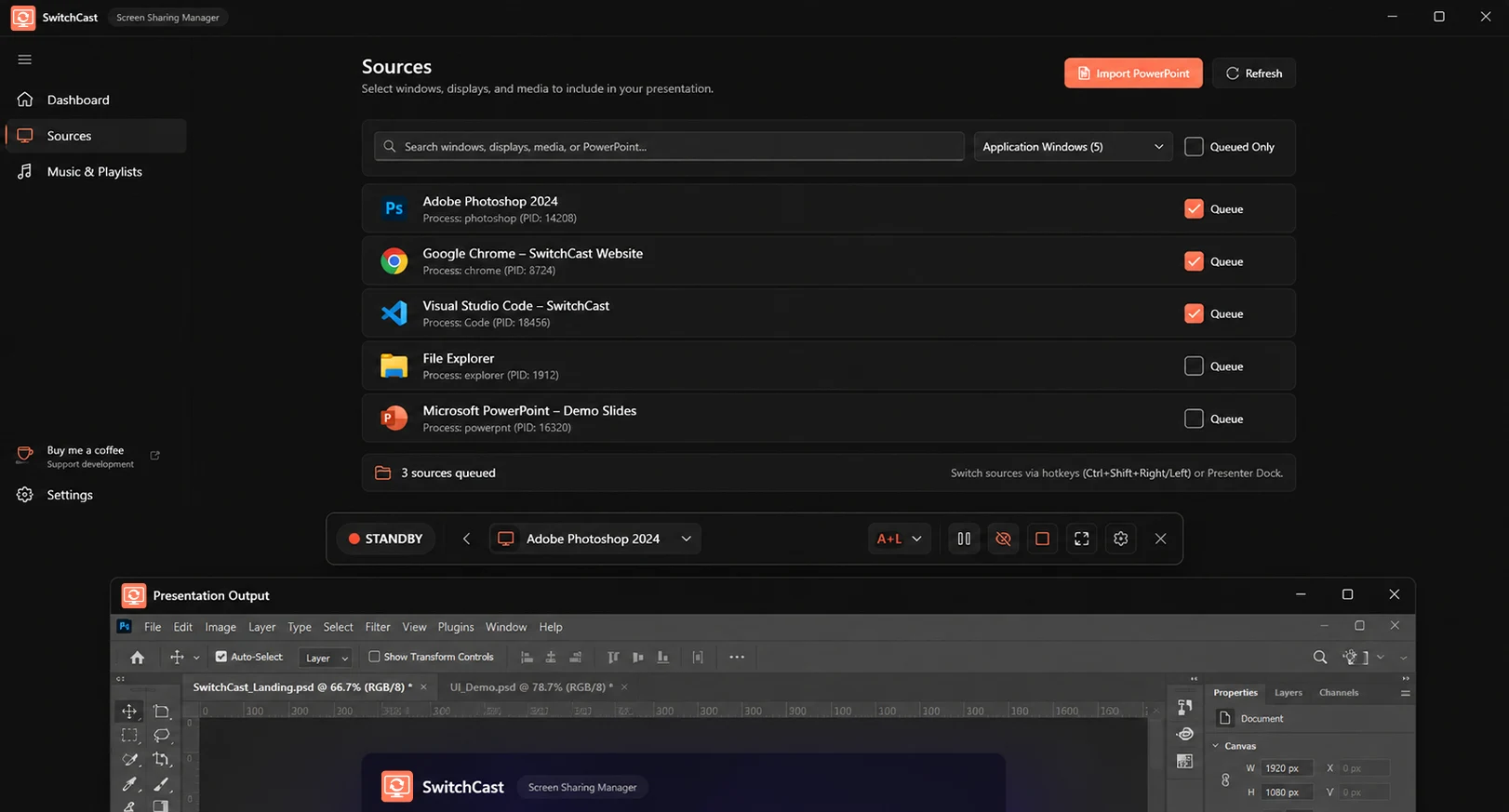
  1. 01Open the Sources tab.
  2. 02Choose the applications, displays, PowerPoint files, or media you need.
  3. 03Add them to your presentation queue.
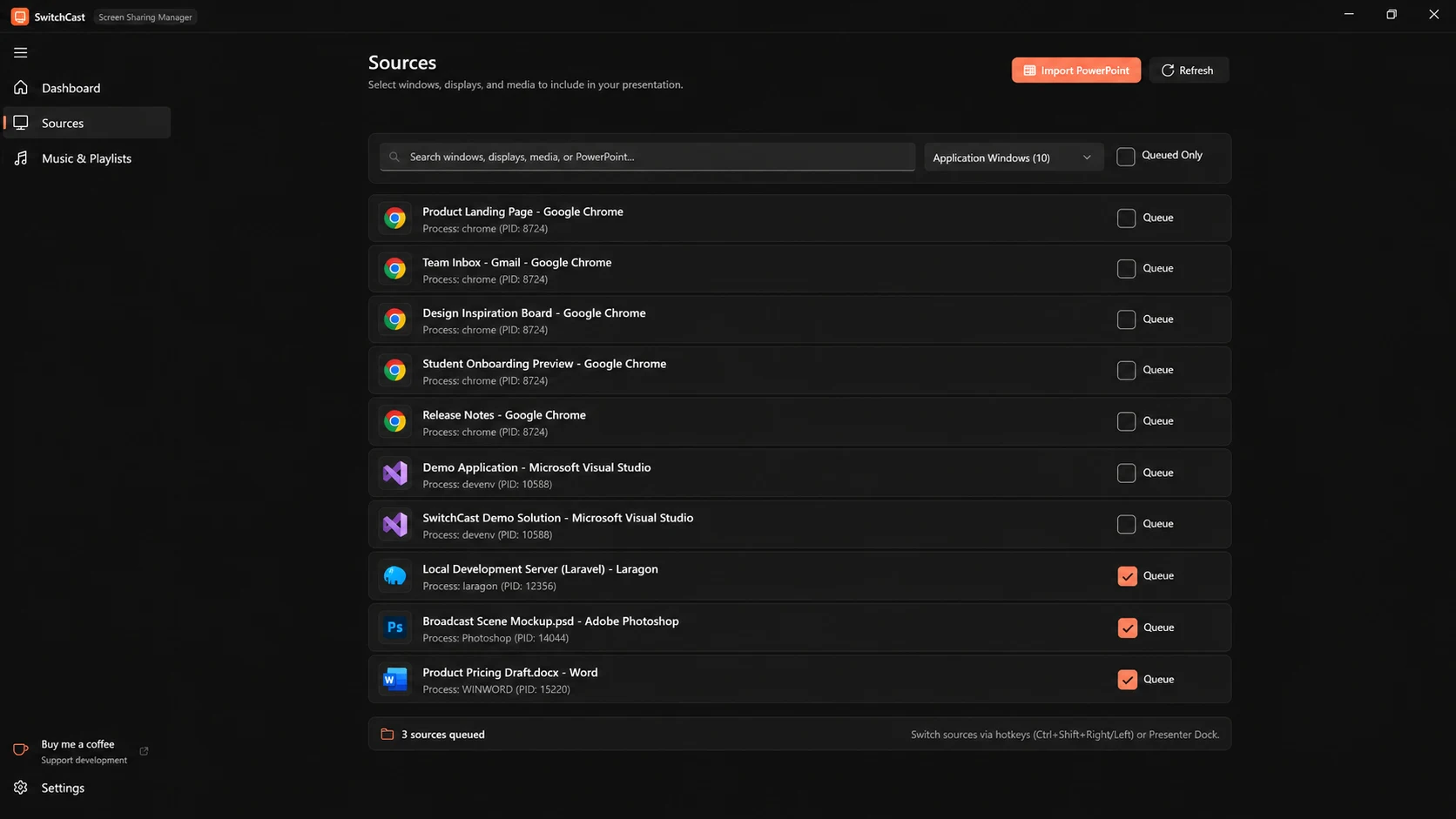
SwitchCast Sources Manager interface showing application catalog and queue checkboxes
02/SHARE

One window for your entire presentation.

Launch the dedicated Presentation Output window once and share it with your audience. Everything routes through this single window.

  1. 01Open the Presentation Output.
  2. 02Start your presentation with a queued source.
  3. 03Share the SwitchCast output window in your meeting application.
Audio Sharing Tip:When presenting video or media clips, remember to check "Share system audio" or "Include computer sound" in your meeting conferencing app.
SwitchCast Presentation Output canvas displaying presentation slides
03/SWITCH

Move between sources without interrupting your audience.

Transition smoothly between apps, slides, and media files without stopping screen share or exposing background windows.

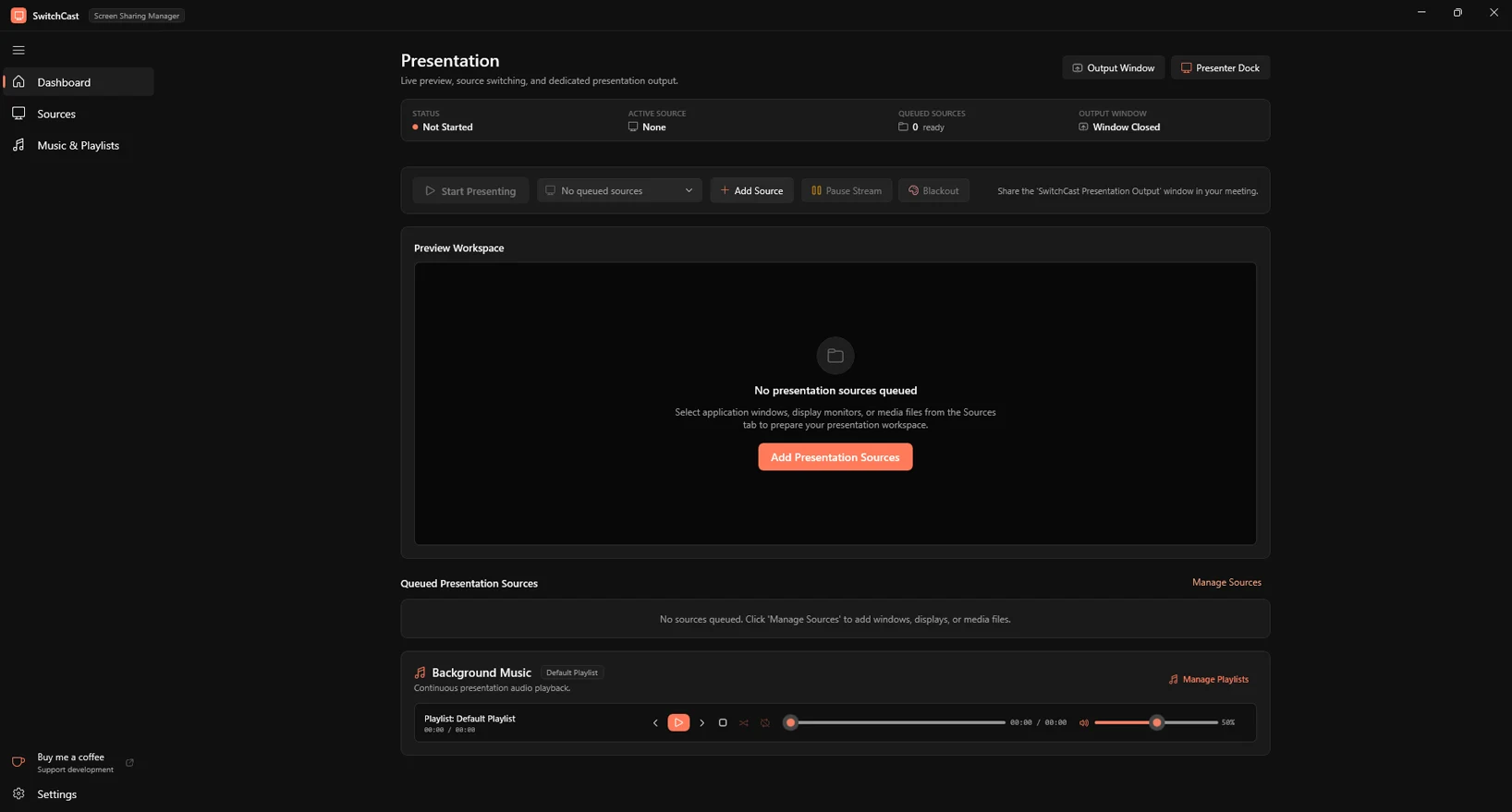
  1. 01Select your next queued source.
  2. 02Use the Dashboard or Presenter Dock to switch.
  3. 03Keep the same Presentation Output shared.
Switching Modes:SwitchCast supports instant switching or preview-first modes so you can stage content before presenting to your audience.
SwitchCast Dashboard displaying live presentation session and source switching controls
04/CONTROL

Everything within reach.

The compact Presenter Dock floats over your full-screen apps so navigation, pause, and privacy blackout are always accessible.

  1. 01Open the floating Presenter Dock.
  2. 02Navigate between sources or select a switching mode.
  3. 03Pause or blackout your presentation when needed.
Keyboard Shortcuts:Ctrl+Shift+Right/Left cycles through sources. Ctrl+Shift+P pauses output. Ctrl+Shift+B toggles privacy blackout.
SwitchCast Floating Presenter Dock with source switching, pause, and privacy blackout controls
05/PRESENT

Bring your slides and media together.

Present PowerPoint slide decks, high-resolution imagery, and video clips directly through the built-in presentation engine.

  1. 01Import a supported presentation or media file.
  2. 02Add it to the presentation queue.
  3. 03Use the available presentation or media controls.
SwitchCast presenting slide deck with native presentation controls
06/PLAY

Set the mood with background music.

Curate walk-in playlists and presentation music that runs independently from your visual screen-sharing channels.

  1. 01Open Music & Playlists.
  2. 02Prepare your audio lineup.
  3. 03Control background music independently.
SwitchCast Playlists tab managing background audio and playlist volume
QUICK REFERENCE

Presenter Controls Matrix

Direct tactile control over what attendees see with instant privacy toggles, floating dock controls, and global hotkeys.

Ctrl+Shift+→ / ←

Next / Previous Source

Step forward or backward through your queued presentation lineup sequentially.

Ctrl+Shift+P

Freeze-Frame Pause

Instantly lock the audience view on the current frame while you navigate backstage.

Ctrl+Shift+B

Privacy Blackout

Emergency curtain that drops audience output to 100% black and mutes media instantly.

Modes L / A+L / A

Switching Modes

Select Live-only cuts, dual Active+Live sync, or Active-only staging modes.

Always-on-Top

Floating Presenter Dock

Always-on-top companion bar that remains accessible without stealing window focus.

Ctrl+Shift+1..5

Direct Lineup Hotkeys

Jump directly to any of your first five queued sources with global shortcuts.

OFFICIAL RELEASE

Download SwitchCast for Windows

Free, standalone, and ready in seconds. No account required, no remote telemetry.

Download for Windows
v1.5.0·Windows x64·Setup Installer·44.5 MB
01
DownloadGet the official Windows installer above
02
InstallRun setup wizard with one-click installation
03
PresentLaunch SwitchCast and start your clean broadcast